Purchasing Custom Apple Quotes/Templates
To purchase custom Apple computing equipment, custom quotes or templates have to be generated. If a custom Quote or template already exists in the system, please follow the steps below:
If there is not a quote or template generated yet, please contact Liberal Arts TIM Andy Castellanos acastellanos@utep.edu to have one generated for you.
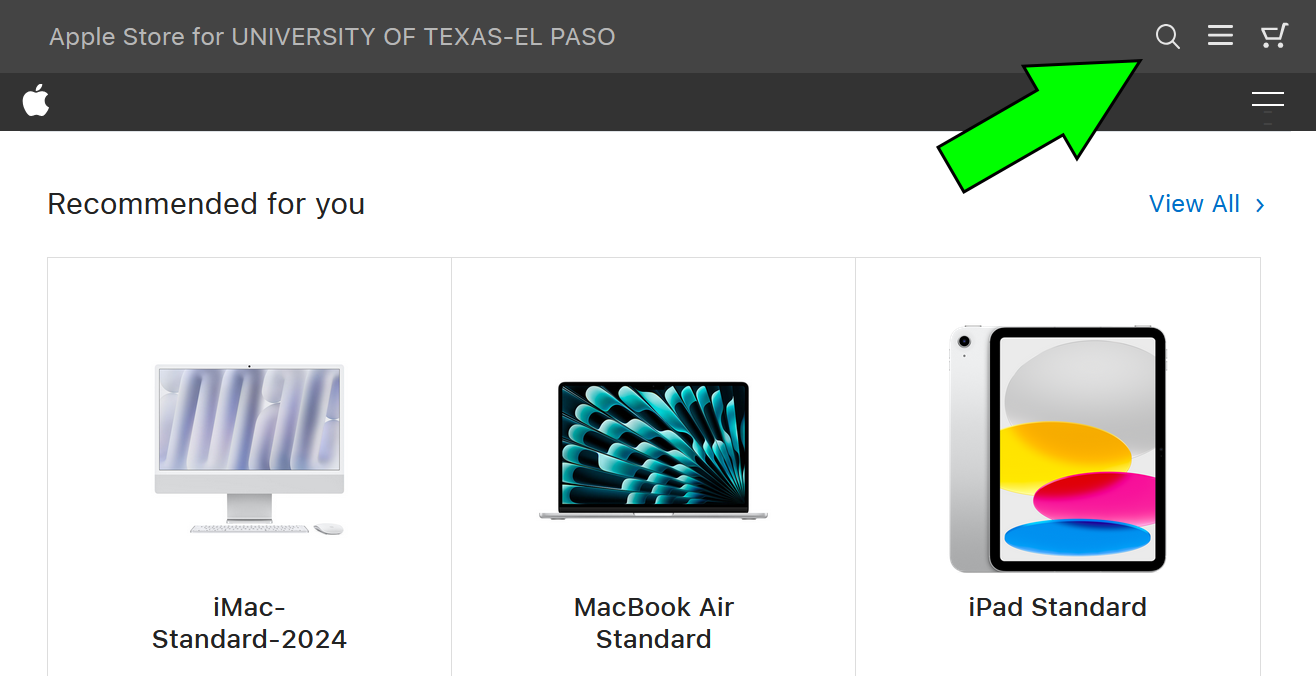
1. Log in to Miner Mall using your UTEP credentials. Select the "APPLE INC" Punch-out. A new window will appear with standards "Recommended for you." Click on the magnifying glass icon on the upper-right and enter the name or number of the quote or template that was generated for you in the search bar that appears:
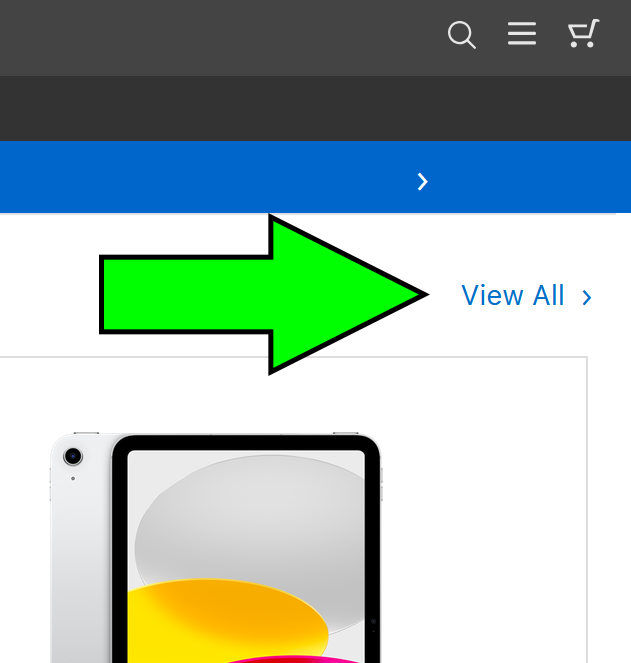
1a. To view all "Recommended for you," please click the "View All >" link:
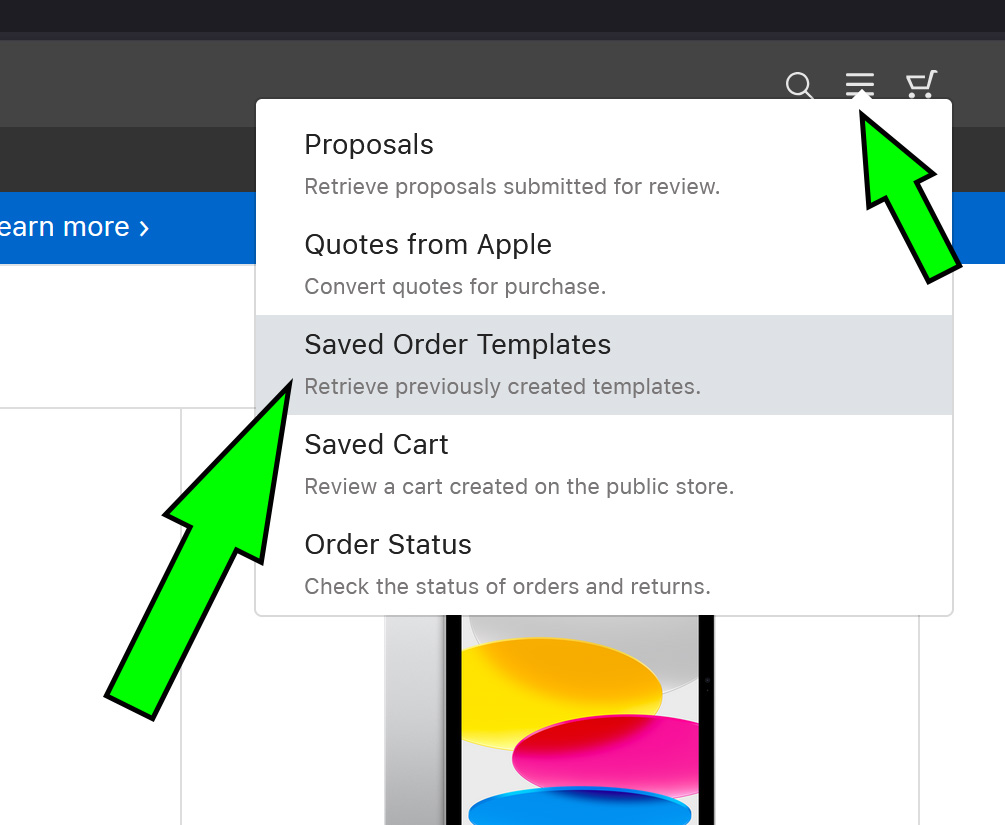
2. If the desired template does not appear, click on the hamburger icon and select "Saved Order Templates" to view all templates in the system:
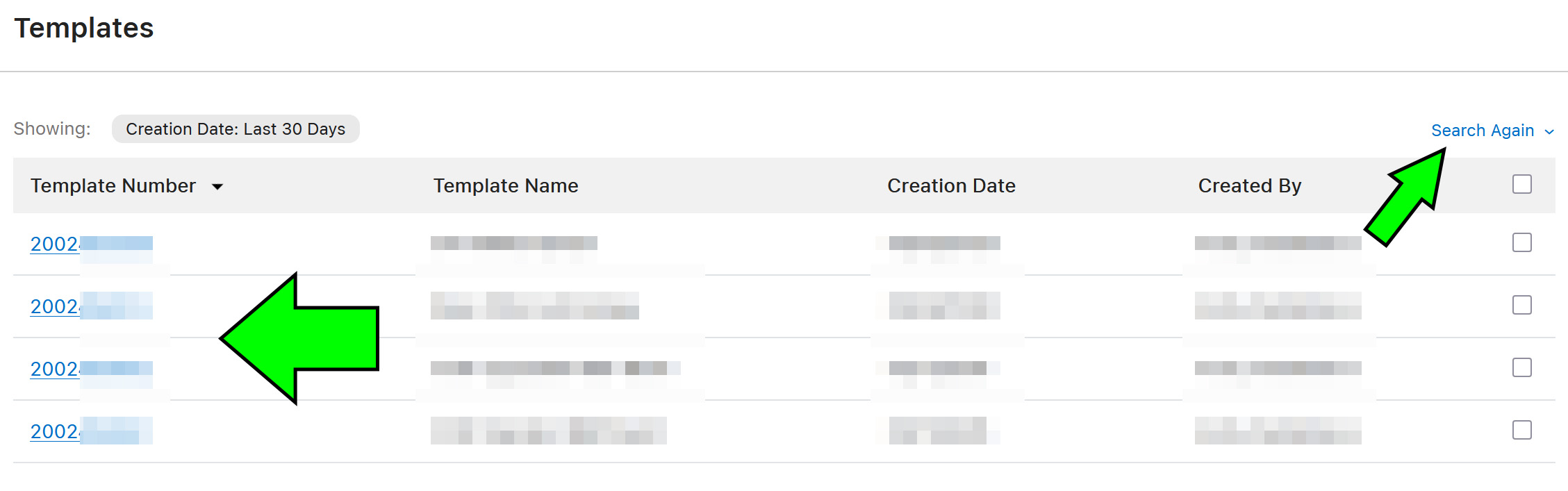
2a. From the listing of saved templates, select the desired one. For advanced searches, please use the "Search Again" option:
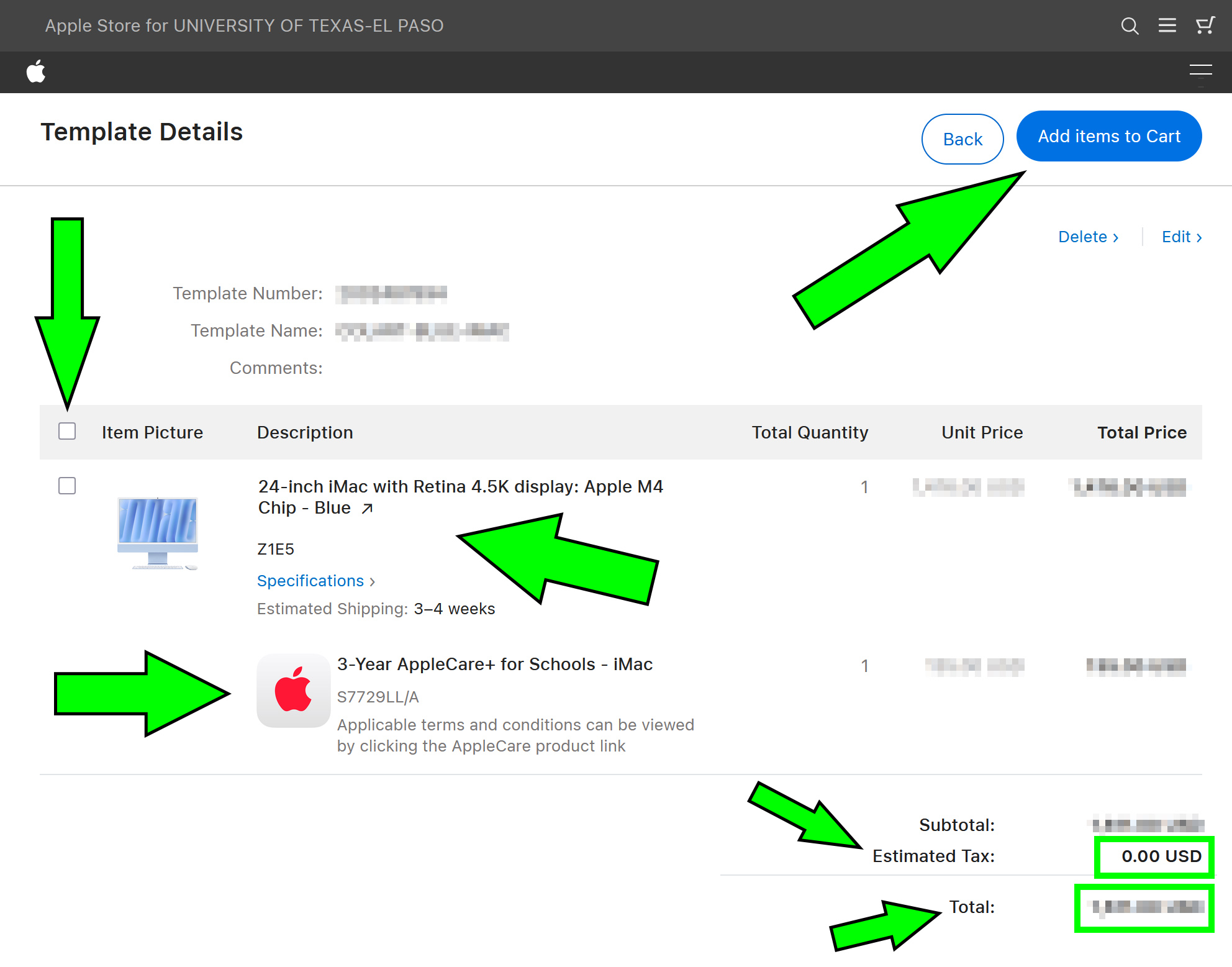
3. Once clicked, Review the quote/template's details, including the item(s)' description, specifications and total price. Ensure "Estimated Tax" is zero. Please note that all Apple computing equipment must come with its appropriate AppleCare+ service contract. Once everything looks good, click on the checkbox to select all items and then Click on the "Add items to Cart" button to continue:
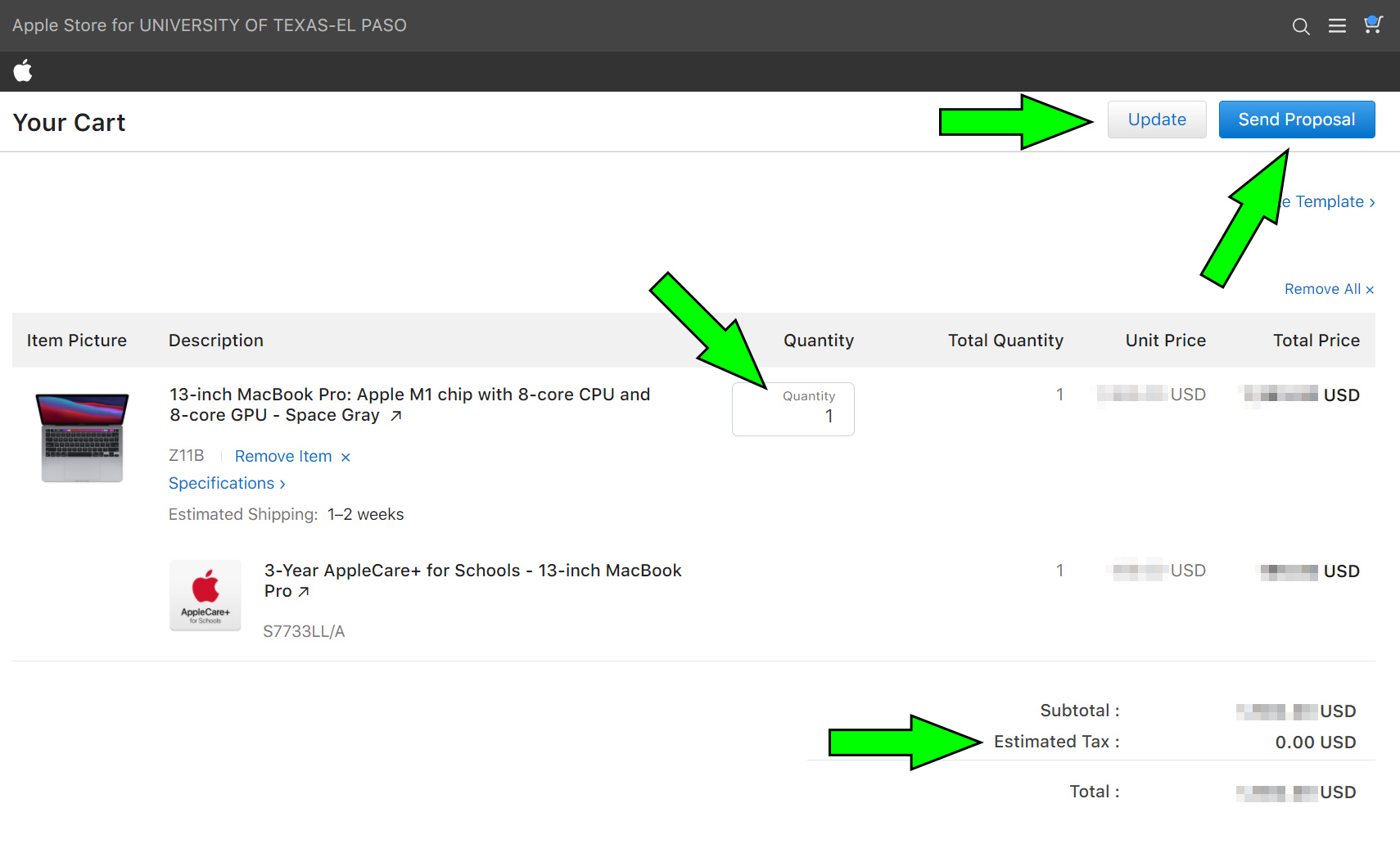
4. If you need to purchase multiples, please enter the desired number in the "Quantity" box and click on the "Update" button. Make sure the "Estimated Tax" total reads 0.00 USD. Once ready, click on "Send Proposal" to continue:
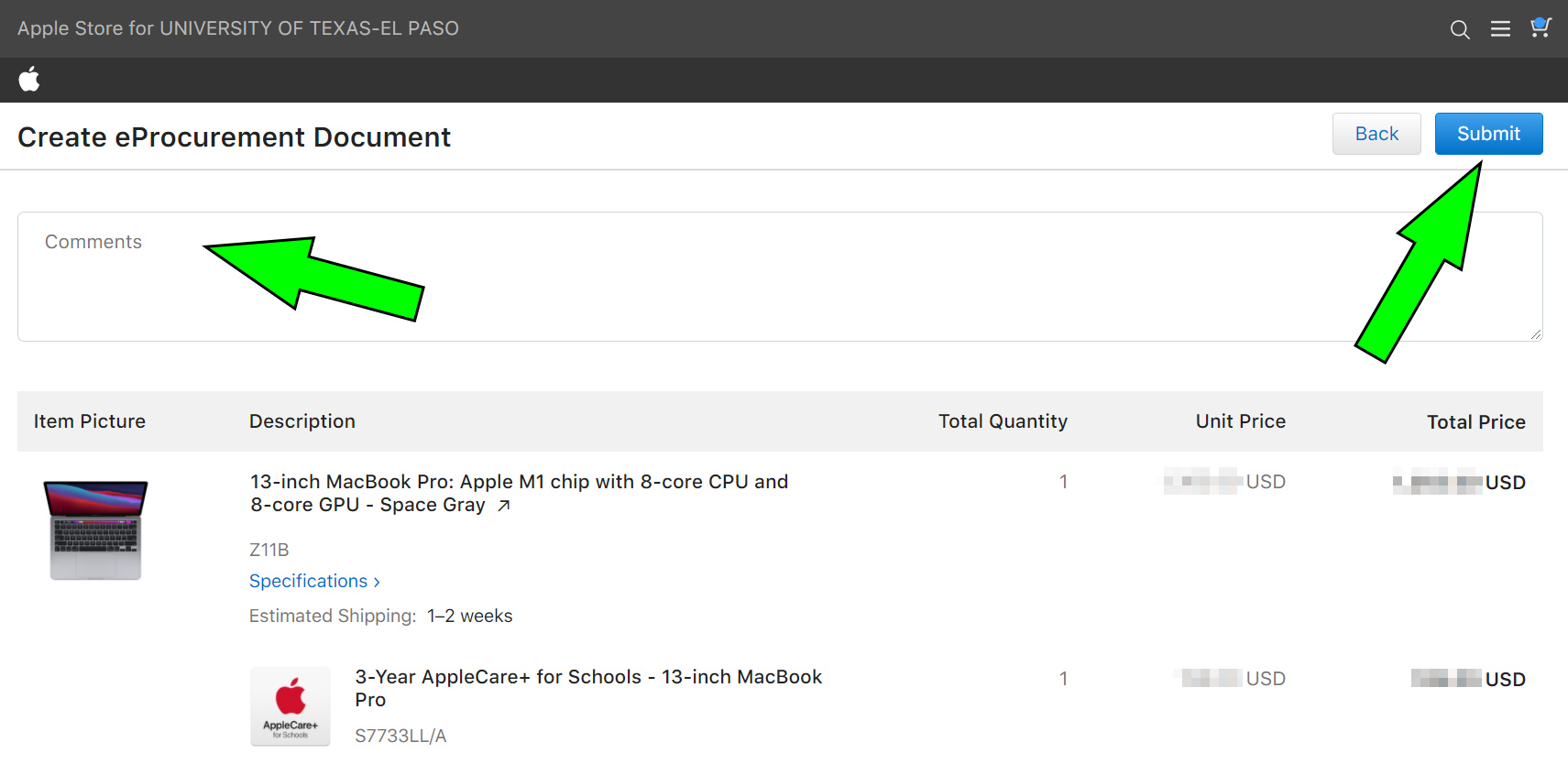
5. An eProcurement Document will be started. Please enter appropriate comments into the box (please be as descriptive as possible). Once ready, click "Submit" to continue:
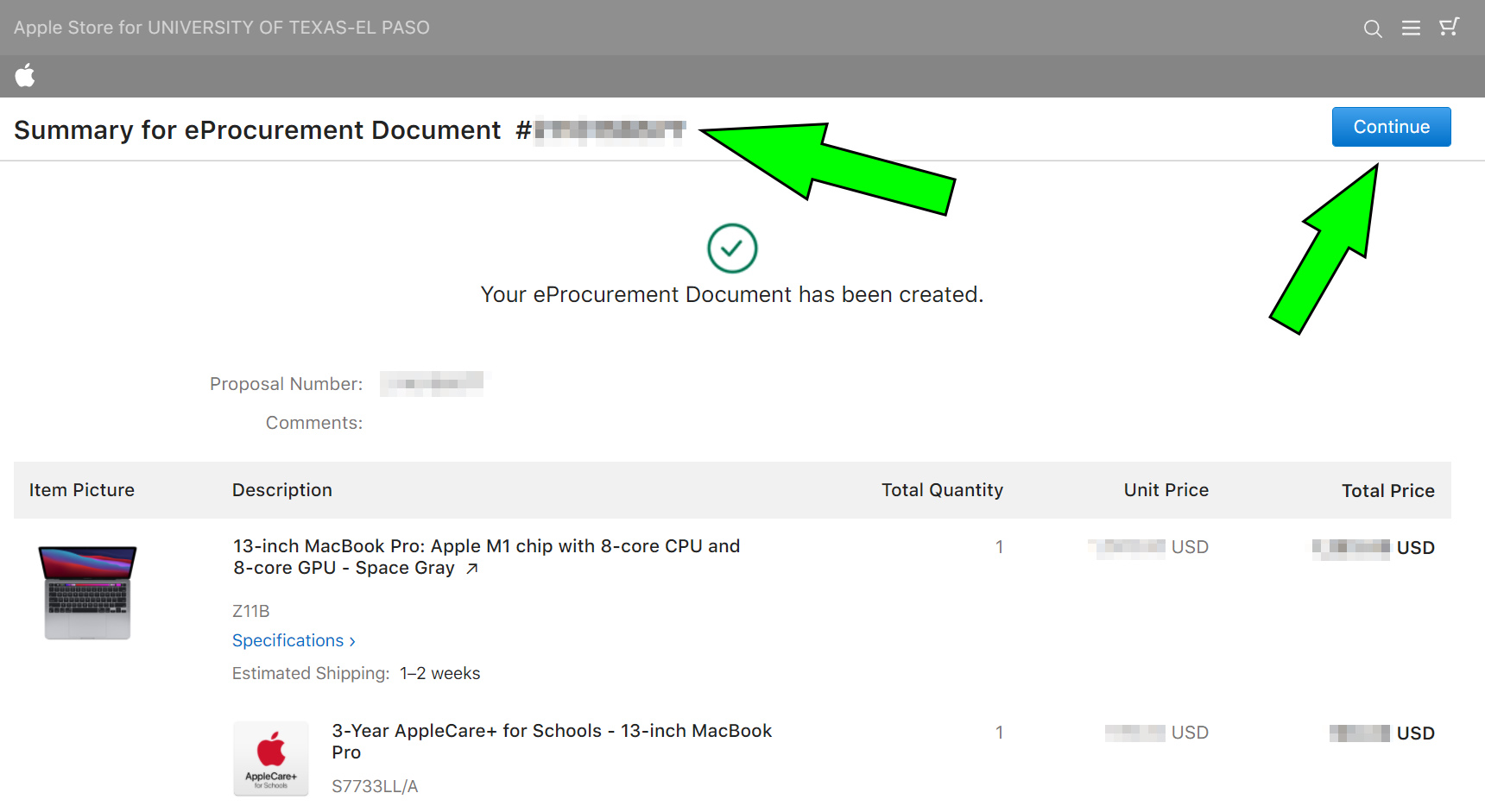
6. The eProcurement Document will be created and assigned a number. Click on "Continue" to transfer the cart to Miner Mall and continue the purchase:
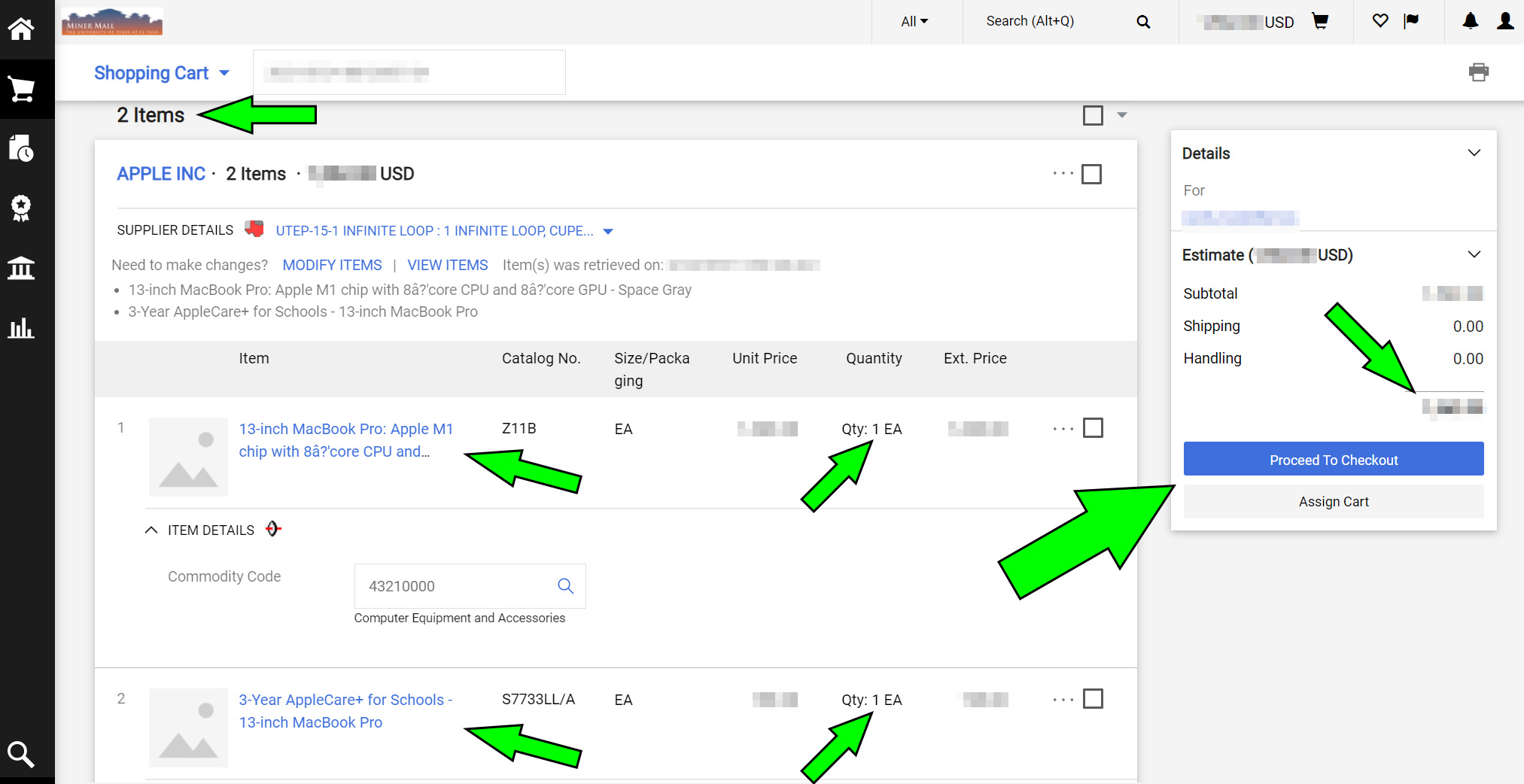
7. The items will be transferred to your Miner Mall Shopping Cart. Make sure all items (the piece[s] of computing equipment and the appropriate AppleCare+) are present in the cart. Once you have verified the quantities and total, click on either "Proceed to Checkout" as normal or, if you are not a purchaser, "Assign Cart" to send the cart to your designated purchaser: