
MinerAlert
MinerAlert
Last updated Oct, 2026
Blackboard Ally is an accessibility tool available in all courses. It continuously scans digital course content, identifies low‑scoring or inaccessible materials, and provides clear, easy‑to‑follow instructions to help instructors improve accessibility. Ally also generates alternative formats for students, ensuring course materials are accessible to everyone and aligned with accessibility standards.
Ally is integrated seamlessly into every Blackboard course and organization. Ally works by scanning your content and detecting accessibility issues, like missing titles or insufficient contrast, and providing you with a score gauge. Instructors can then examine this score to see what issues lie in the content as well as how to fix them.
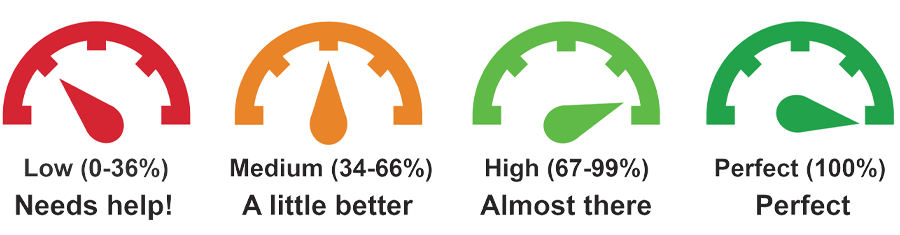
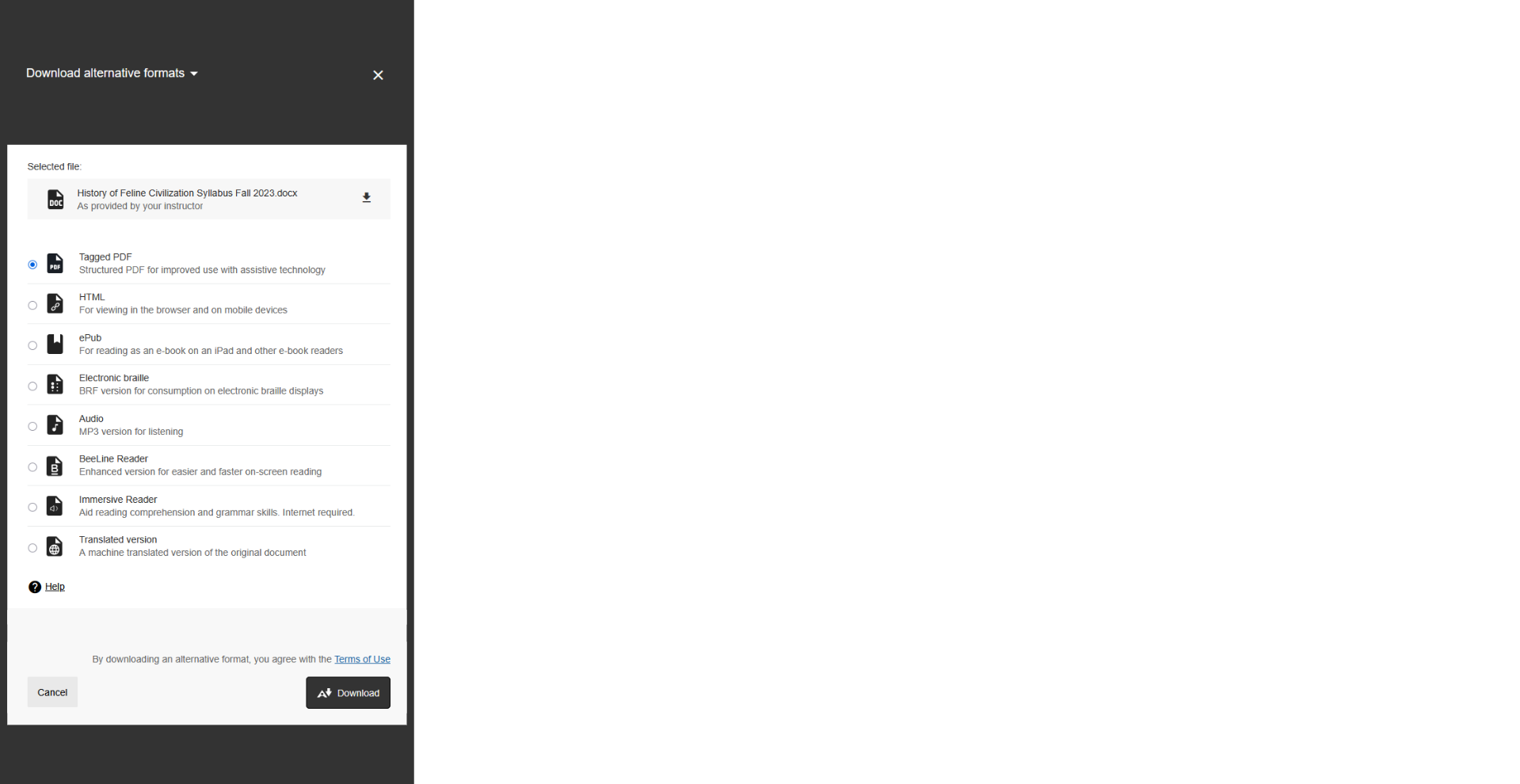
Ally also generates alternate formats that students can download. This allows students to easily obtain files in different formats according to their needs. For example, a student with visual impairment may find the electronic braille format more accessible.
| Video | Training Title |
|---|---|
| Microlearning for Accessible Teaching | |
| COMING SOON |
Instructors
Option 1: Locate the file you want to review in your course.
1. Individual files such as Word documents or PDFs will automatically display an accessibility gauge next to them. This gauge indicates how accessible the file is for students.

2. Click this gauge to access the accessibility report for this file as well as receive suggestions to make the file more accessible.
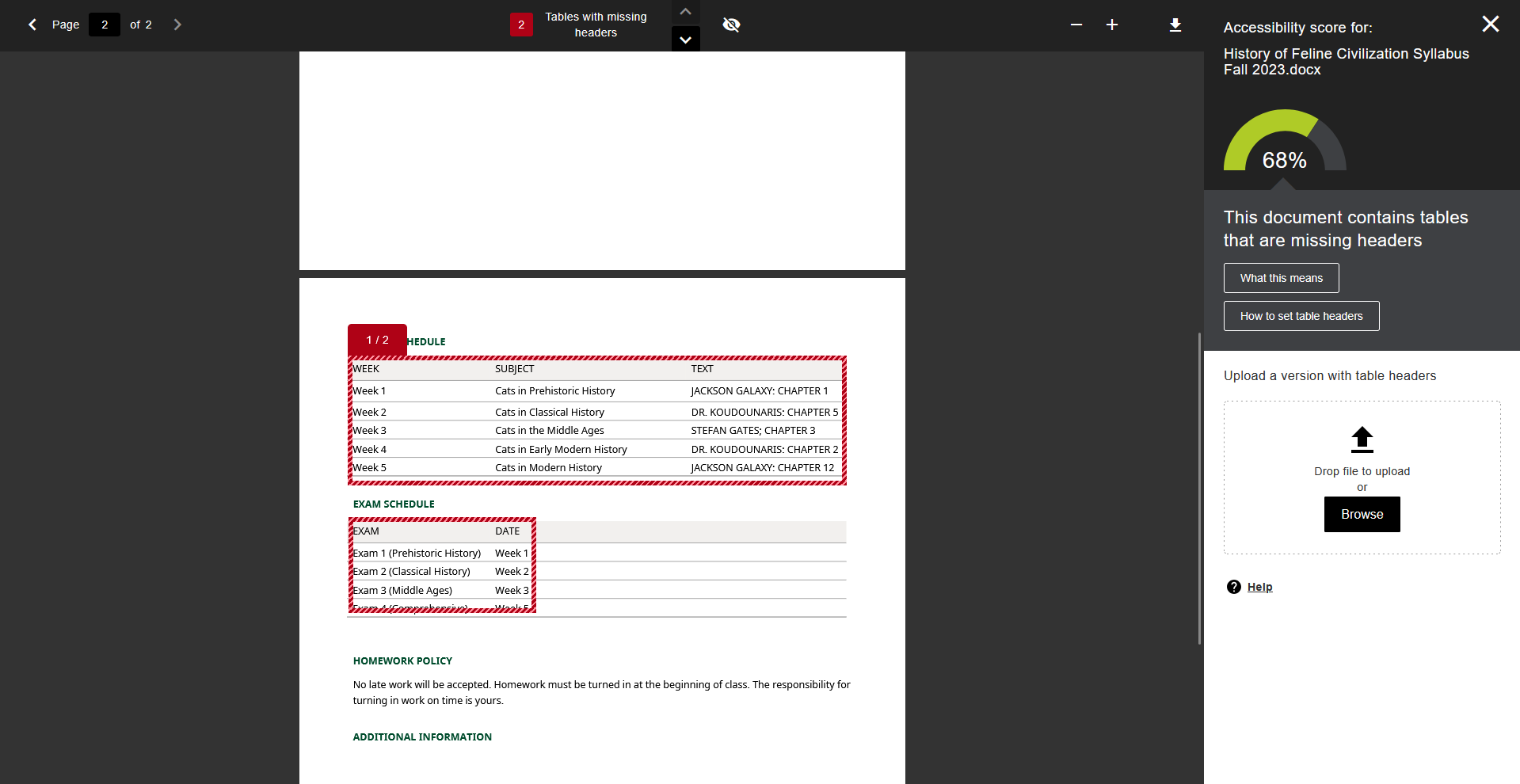
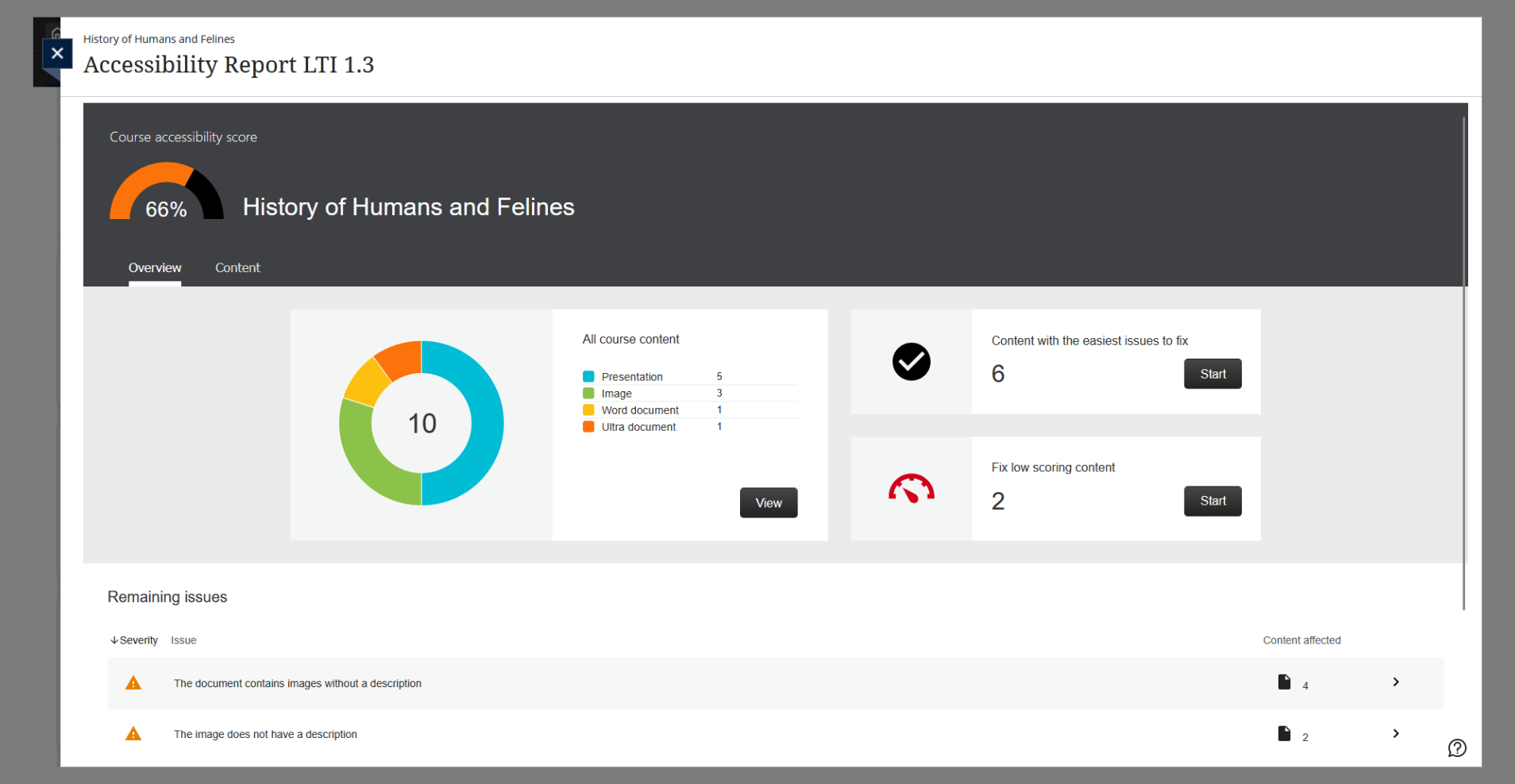
Option 2: Ally also provides an overall report for your course, covering the accessibility of all your files. This report allows you to easily determine which issues are most persistent in your course, as well as see which ones are easiest to fix.
1. To access this report, head to “Books and Tools” on the right-hand Details and Actions menu in your course. Then, click on “Accessibility Report LTI 1.3”.
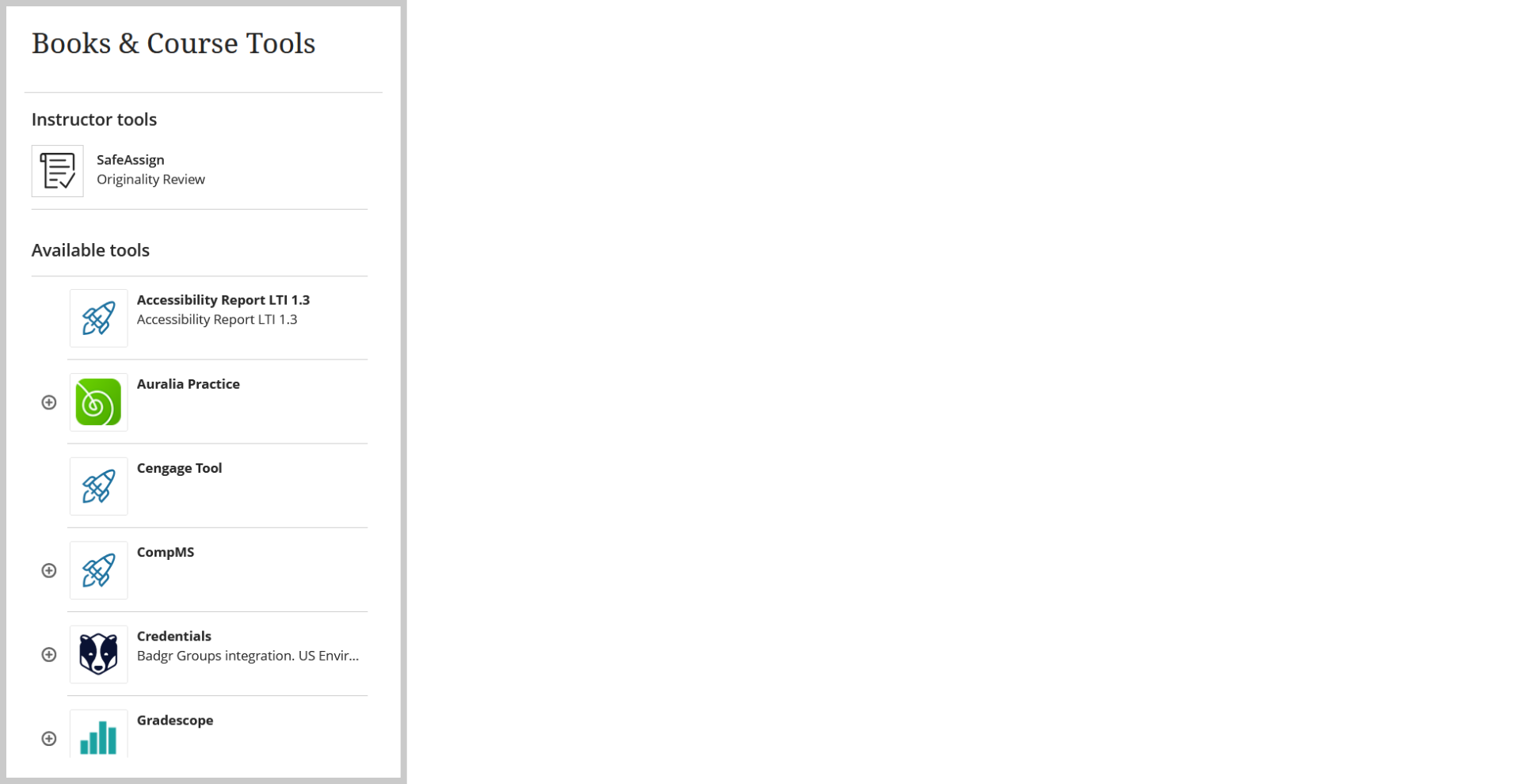
2. Instructors will then see an overall accessibility report for their course.
Students
1. Students can access alternative formats by clicking the Ally icon next to supported files, like Word documents and PDFs.

2. A list of available alternative file types will then be presented, and the desired file type can be downloaded.
The following best practices can help improve your overall score and achieve a green (high) rating: remove unused course files and use the Ally Course Accessibility Report to prioritize easy fixes and red (low-score) items. Common issues and recommended fixes are provided below.
Fix Text Contrast. Tip: in Word documents, use high‑contrast color combinations.
Instructors
Do my Ally changes transfer when I copy my course?
Yes! Your changes will remain with your files, even if they are copied.
What happens to my original files when I replace them in Ally?
The original file is overwritten with the fixes.
Do I need to do anything manually to generate alternative formats?
No. Alternative formats will be generated automatically – no need for manual configuration from your end.
No. However, there are some caveats to keep in mind, per Blackboard:
Students
What alternative formats are available for students?
The following file types are available using Ally
Which alternative format should I use?
Choose the format that best supports how you learn. You can compare the benefits of each format by reviewing the format comparison guide.